
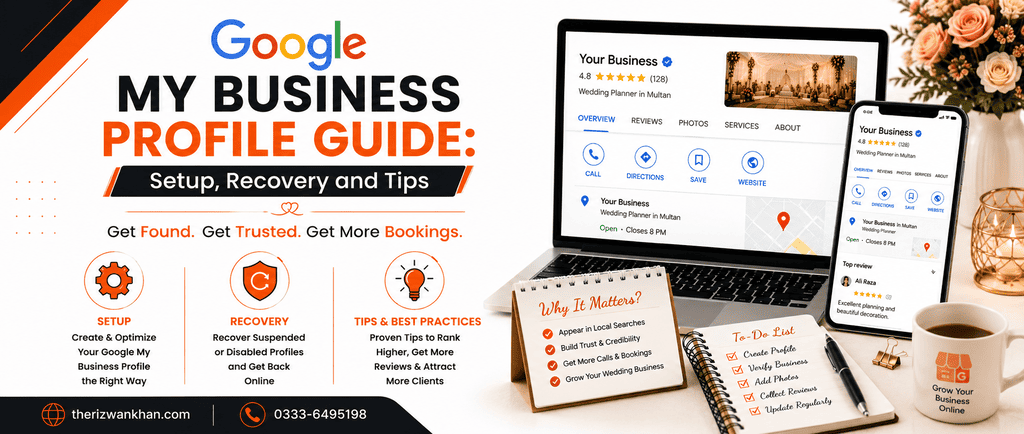
If your business is not showing up when people search for it on Google, you are losing customers to competitors who are visible. This is where a Google My Business Profile becomes important. A Google Business Profile is a free tool from Google that lets your business appear on Google Search and Google Maps with details like your address, phone number, working hours, photos, and customer reviews.
Whether you run a clinic, a gym, a retail shop, or an online service, setting up and managing your Google Business Profile the right way can bring in local customers without spending money on ads. This guide covers the complete lifecycle of a Google My Business Profile, from creating and claiming it, to verifying, recovering, and even reinstating a suspended listing, along with practical optimization tips.
What Is a Google Business Profile
A Google My Business Profile, earlier known as Google My Business, is a free business listing tool that connects your business with people searching on Google. When someone searches for your business name or a service you offer, your Google Business Profile can appear in the search results and on Google Maps, showing your location, contact number, reviews, photos, and business hours. It works as a mini website for your business right inside Google search results, and for many small businesses, it is often the first thing potential customers see before they even visit an actual website.
Why a Google My Business Profile Is Important
A well maintained Google Business Profile can directly affect how many customers find and trust your business. Here is why it matters:
- Local visibility: Most people search for services near them, and Google My Business Profile helps your business show up in these local searches and on Google Maps.
- Builds trust: Reviews, ratings, and complete business information make new customers more confident about choosing your business over one with no online presence.
- Free marketing: Unlike paid ads, a Google My Business Profile does not cost anything to set up or maintain, yet it can bring consistent traffic and inquiries.
- Better than a website alone: Many customers check your Google My Business Profile before visiting your website, since it gives quick answers like hours, location, and reviews.
- Improves local SEO: Search engines use signals from your Google My Business Profile, such as reviews and business category, to rank your business higher for local search terms.
How to Create a Google My Business Profile (Step by Step Guide)
Setting up your Google Business Profile is straightforward if you follow these steps in order.
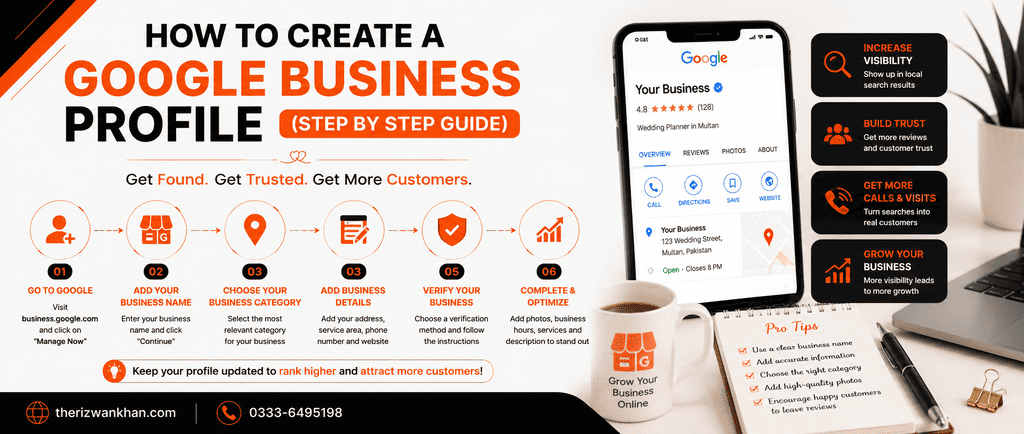
Step 1: Sign in with a Google account
Use an existing Google account or create a new one specifically for your business. This account will be used to manage the profile going forward.
Step 2: Go to the Google My Business Profile website
Visit business.google.com and click on Manage Now to start creating your profile.
Step 3: Enter your business name
Type your exact business name as it appears on your signboard, invoices, and other official material. Avoid adding extra keywords to the name, since this goes against Google policy and can get your profile suspended.
Step 4: Choose your business category
Select the category that best matches your business, such as clinic, gym, restaurant, or digital marketing agency. This helps Google understand what your business does and show it to the right audience.
Step 5: Add your business location
If customers visit your physical location, add your exact address. If you offer services at customer locations instead, you can set a service area rather than a public address.
Step 6: Add contact details
Enter your phone number and website link so customers can reach you directly from the search results.
Step 7: Set your business hours
Add accurate opening and closing hours, including any special hours for holidays or weekends, so customers know exactly when you are available.
Step 8: Write a business description
Add a short, clear description of your business that naturally includes what you do and where you are located. This description should sound natural and informative rather than stuffed with keywords.
Step 9: Upload photos
Add clear photos of your storefront, products, services, and team. Profiles with good quality photos tend to get more clicks and calls than those without images.
Step 10: Verify your profile
Once all details are added, Google will ask you to verify the profile before it goes live in search results.
How to Claim an Existing Google Business Profile
Sometimes Google automatically creates a listing for a business based on public data, or a previous employee or agency may have set one up already. Claiming this existing Google Business Profile is different from creating a new one, and doing it correctly avoids duplicate listings.
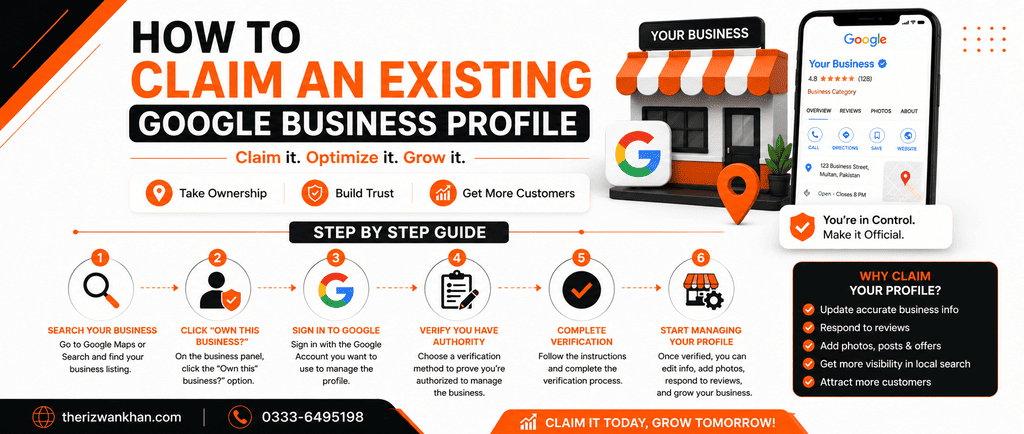
Step 1: Search for your business
Look up your business name on Google Search or Google Maps to see if a listing already exists.
Step 2: Check the ownership status
If the listing shows an option that says Own this business or Claim this business, it means the profile is unclaimed and ready for you to take over.
Step 3: Follow the verification process
Once you start the claim, Google will guide you through the same verification methods used for a new profile, such as postcard, phone, or email.
Step 4: Request access if it is already claimed
If the listing shows as managed by someone else, such as a former employee or a previous marketing agency, use the Request Access option. This sends a notification to the current owner asking them to either grant you access or respond within a set period.
Step 5: Wait for Google review if there is no response
If the current owner does not respond within about seven days, Google may review your request and grant access after verifying your relationship with the business.
How to Recover a Google Business Profile After Losing Access
Losing access to your Google Business Profile is a common problem, especially when a former employee, developer, or agency managed the account and left without transferring ownership. Recovering the profile is possible, but it requires patience and proper documentation.
- Lost your Google account login: Use the standard Google Account Recovery process to regain access to the email address linked with the profile.
- Former manager still has access: Use the Request Access feature on the business listing so Google can notify the current manager and start the ownership transfer process.
- Profile appears hacked or changed without your permission: Report the issue through the Google Business Profile Help Community, since suspicious ownership changes are reviewed separately from normal access requests.
- Keep proof of ownership ready: Documents such as a business registration certificate, tax record, trade license, or utility bill in the business name help speed up the recovery process when Google asks for verification.
Recovery requests can take anywhere from a few days to a few weeks depending on the situation, so it helps to start the process as soon as you notice a problem rather than waiting.
How to Fix a Suspended Google Business Profile
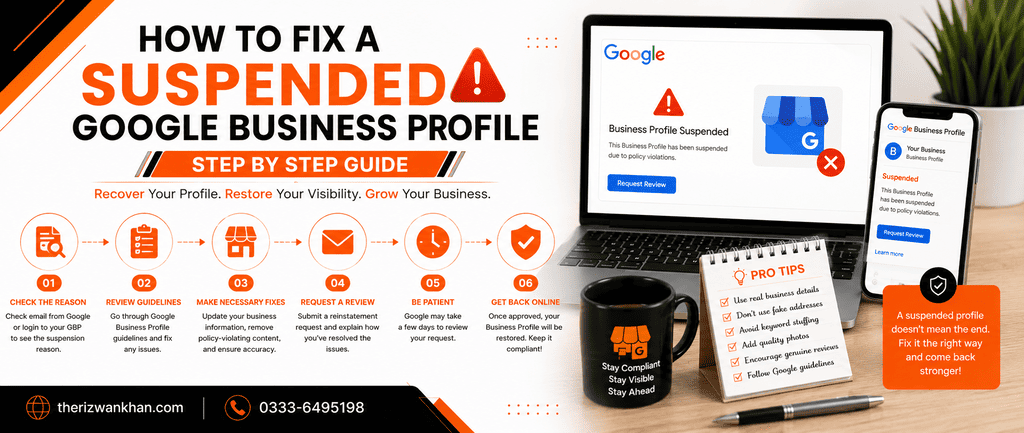
A suspended Google Business Profile stops appearing in search results and Google Maps, which can seriously affect a local business. Suspensions usually happen because of a policy violation, and understanding the cause is the first step toward getting the profile reinstated.
- Keyword stuffed business names: Adding city names or service keywords to your business name is one of the most common reasons for suspension.
- Fake or incentivized reviews: Buying reviews or asking customers to leave reviews in exchange for discounts violates Google policy.
- Incorrect business category or address: Using a virtual office, PO box, or an address that does not match a real, staffed location can trigger a suspension.
- Duplicate listings: Having more than one profile for the same location confuses Google’s system and often leads to one or both listings being suspended.
There are usually two types of suspension. A soft suspension hides your profile from public search results but still allows you to log in and edit the dashboard. A hard suspension locks the entire account and blocks access completely.
Step 1: Identify the exact reason
Review Google’s Business Profile guidelines and compare them against your listing to find the specific violation.
Step 2: Fix the issue on your profile
Correct the business name, update the address, remove any fake reviews you may have requested, or fix the category before requesting reinstatement.
Step 3: File a reinstatement request
Use the reinstatement form available through Google My Business Profile Support to formally request a review of your suspended listing.
Step 4: Submit supporting documents
Provide proof such as a business license, utility bill, tax registration, or clear photos of your storefront with signage to support your ownership claim.
Step 5: Wait for the review
Reinstatement reviews can take anywhere from a few days to several weeks, and creating a new duplicate profile while waiting can lead to a permanent suspension.
Best Tips to Optimize Your Google Business Profile
Creating and maintaining a profile is only part of the process. Optimization is what actually brings customers in. Here are practical tips that make a real difference:
- Complete every section: Profiles with complete information, including services, products, and attributes, perform better in search results than incomplete ones.
- Use your primary keyword naturally: Mention your main service and location naturally in your business description, without keyword stuffing.
- Keep your NAP consistent: Your Name, Address, and Phone number should match exactly across your website, social media, and other listings.
- Post regularly: Google Posts allow you to share updates, offers, and news, keeping your profile active and showing Google that your business is engaged.
- Add fresh photos often: Regularly updated photos signal an active business and help customers see what to expect.
- Encourage genuine reviews: Ask satisfied customers to leave honest reviews, since review count and rating directly affect local rankings.
- Respond to every review: Replying to both positive and negative reviews shows customers and Google that your business is attentive and professional.
- Use the Q&A section: Answer common questions proactively so potential customers get quick, accurate information.
- Add services and products: Listing exact services or products with brief descriptions helps your profile match more specific search queries.
- Monitor Insights: Google Business Profile Insights show how customers find and interact with your listing, which helps you adjust your strategy over time.
Optimized vs Non-Optimized Google Business Profile
Here is a quick comparison showing the difference an optimized Google My Business Profile can make:
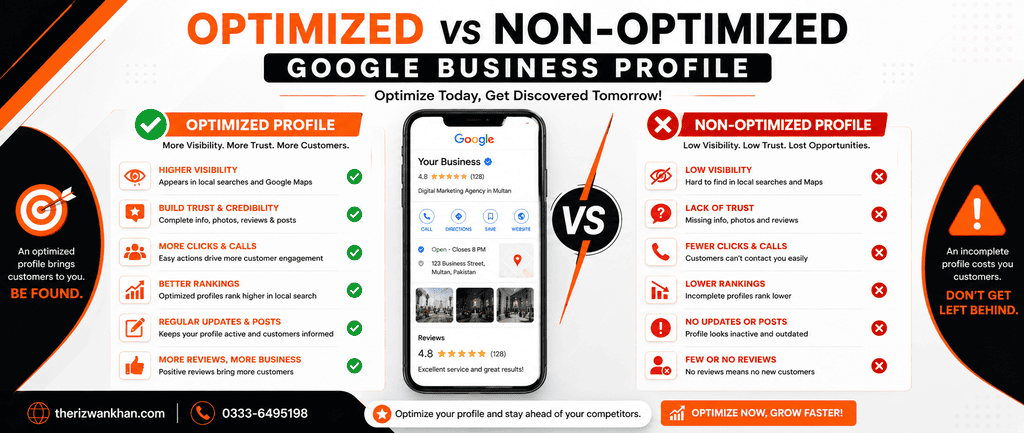
| Feature | Optimized Profile | Non-Optimized Profile |
| Business Information | Complete and accurate | Missing or outdated details |
| Photos | Regular, high quality photos | Few or no photos |
| Reviews | Responded to consistently | Ignored or unanswered |
| Posts and Updates | Posted regularly | Rarely or never posted |
| Local Search Ranking | Appears in top local results | Ranks low or not visible |
| Suspension Risk | Low, follows Google policy | High, due to policy violations |
| Customer Trust | High, due to completeness | Low, looks inactive |
Common Mistakes to Avoid in Your Google My Business Profile
Even well-meaning business owners make mistakes that hurt their Google Business Profile performance or put it at risk of suspension. Watch out for these:
- Incomplete information: Leaving out business hours, phone numbers, or categories makes your profile look unreliable.
- Keyword stuffing in the business name: Adding extra words like city or service names to your business name violates Google policy and can lead to suspension.
- Duplicate listings: Creating multiple profiles for the same business confuses customers and can hurt your rankings.
- Ignoring reviews: Not responding to reviews, especially negative ones, gives the impression that the business does not care about customer feedback.
- Wrong business category: Choosing an incorrect or overly broad category makes it harder for the right customers to find you.
- Outdated business hours: Incorrect hours frustrate customers who arrive at a closed business and can lead to lost trust.
- Low quality or missing photos: A profile with no photos or blurry images looks less trustworthy compared to one with clear, professional images.
- Fake reviews: Buying or exchanging fake reviews violates Google policy and can result in your profile being suspended or removed entirely.
- Not transferring ownership: Leaving a profile under an old employee or agency account without transferring access makes future recovery much harder.
Key Takeaways
- A Google My Business Profile is a free tool that helps your business appear on Google Search and Google Maps.
- Claiming an existing listing is different from creating a new one, and using Request Access avoids duplicate profiles.
- Verification is required before your profile becomes visible in search results.
- Losing access to a profile can usually be recovered through account recovery, request access, or Google support with proper documentation.
- A suspended profile can often be reinstated by fixing the violation and filing a reinstatement request with supporting documents.
- Regular photos, posts, and review responses keep your profile active and improve local rankings.
- Avoiding common mistakes like keyword stuffing and duplicate listings protects your profile from suspension.
Frequently Asked Questions
Is a Google Business Profile free to create?
Yes, creating and maintaining a Google My Business Profile is completely free. Google does not charge for setting up, verifying, claiming, or managing your listing.
What is the difference between Google My Business and Google Business Profile?
Google My Business was rebranded as Google My Business Profile in 2021. The tool works the same way, but it can now be managed directly through Google Search and Maps instead of a separate app.
How long does it take to recover a suspended Google My Business Profile?
Reinstatement can take anywhere from a few days to several weeks, depending on how quickly you fix the violation and how detailed your supporting documents are.
Can I claim a Google Business Profile that already has reviews?
Yes, if a listing already exists with reviews, claiming it keeps those reviews attached to the profile, since you are taking ownership of the existing listing rather than creating a new one.
What should I do if a former employee still controls my Google Business Profile?
Use the Request Access option on the listing so Google can notify the current manager, and prepare business documents in case Google needs to verify your ownership.
Can I remove a negative review from my Google Business Profile?
You cannot remove a review yourself, but you can respond to it professionally, and you can report reviews that violate Google’s policies for removal.
Does a Google My Business Profile help with SEO?
Yes, a well optimized Google My Business Profile is one of the strongest factors in local SEO, helping your business rank higher for location based searches.
Conclusion
A Google My Business Profile is one of the simplest yet most effective tools available for local businesses today. From creating and claiming it, to verifying, recovering lost access, and reinstating a suspended listing, every stage plays a role in how visible and trustworthy your business appears to potential customers. By keeping your profile complete, accurate, and policy compliant, you give your business a real chance to be found by the right people at the right time, without spending money on advertising. Start by creating, claiming, or reviewing your Google Business Profile today, and make it a habit to monitor and optimize it regularly as your business grows.
Rizwan Khan Digital Marketing Consultant
If you need any help of information or you want any services regarding GMB (Google My Business) Profile or GBP (Google Business Profile) please contact Rizwan Khan SEO Expert. Contact Details are given below:





Any solution for video verification of GBP??????
Sir mine profile gone suspended plz help